GBrowser: Browse the web
GBrowser shows web pages in the GBrowser tool window, next to the editor. Each tab is a separate Chromium browser with its own address field and toolbar.
The default shortcuts in this topic are for Windows and Linux. For the full list, see GBrowser: Keyboard shortcuts. On macOS, GBrowser shortcuts use ⌘ instead of Ctrl and ⌥ instead of Alt; see Default shortcuts on macOS.
Open GBrowser
Open the tool window
Click the GBrowser button on the left tool window bar.
Select .
The first tab opens the default home page. You set the home page in settings.
To move GBrowser to the right side of the IDE window, drag its button to the right tool window bar.
Navigate
The browser toolbar sits at the top of each tab:
Backward (Alt+Left) and Forward (Alt+Right) move through the tab's history.
Home (Ctrl+Alt+H) opens the default home page.
Reload Page (Ctrl+R) loads the page again without using the browser cache. To cancel a slow load, select Stop Loading in the More Options menu or press Ctrl+..
The address field shows the current URL and the site icon.
The bookmark button adds the page to bookmarks or removes it. See GBrowser: Bookmarks and history.
More Options
 opens a menu with every browser action. See More Options menu.

Search from the address field
Open a page or search
To search the web from the address field, first turn on Enable suggestion search. The option is off by default.
Click the address field, which shows Search or type a URL when it is empty.
Type a URL or a search term. A list of matching pages from your history and bookmarks appears below the field.
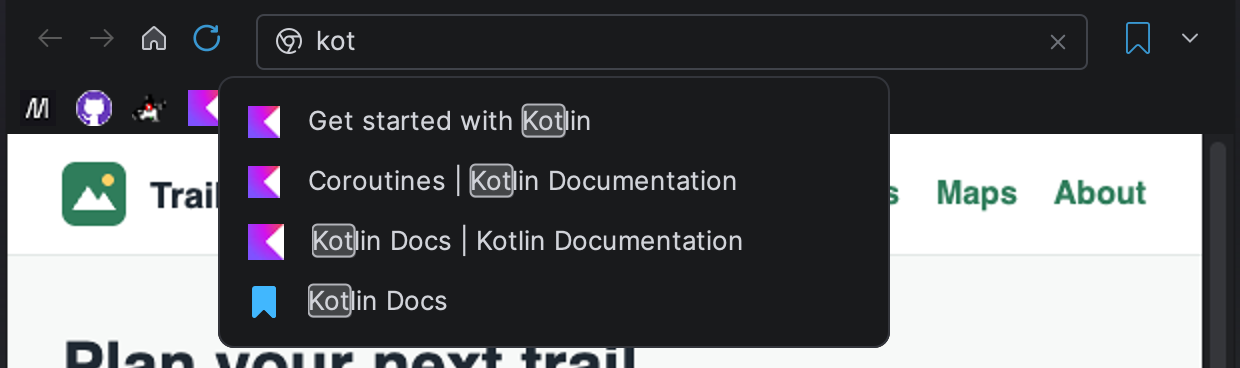
Press Down and Up to select an entry, then press Enter. To load what you typed, press Enter without selecting an entry.
Press Esc to close the list and restore the previous address.
When Enable suggestion search is on, the list also shows Google search suggestions, and GBrowser opens a Google search for text that is not a URL. When the option is off, GBrowser loads the text as an address. For the options that change how the address field looks, see Search settings.
Work with tabs
Each tab shows the site icon and the start of the page title. The tool window title bar has the Add Tab and Toggle Toolbar Visibility buttons and the Options menu.
- Add Tab
Opens a new tab with the default home page. Shortcut: Ctrl+T.
- Close Tab
Closes the current tab. Shortcut: Ctrl+W.
- Duplicate Tab
Opens the current page in a new tab. Shortcut: Ctrl+Alt+D.
- Restore tabs
To reopen your tabs with the project, turn on Reload previous tabs.
Show two tabs side by side
Drag a tab to an edge of the tool window.
This requires Enable tab splitting, which is on by default.

Hide the browser toolbar
To give the page more room, click Toggle Toolbar Visibility in the tool window title bar or press Alt+T. The address field, the toolbar and the bookmarks bar of the current tab are hidden. Use the same action to show them again.
Find text on a page
Find text on the current page
Press Ctrl+F, or select Find... in the More Options menu. A search box opens at the top right of the page.
Type the text. GBrowser highlights the matches as you type; the search ignores case.
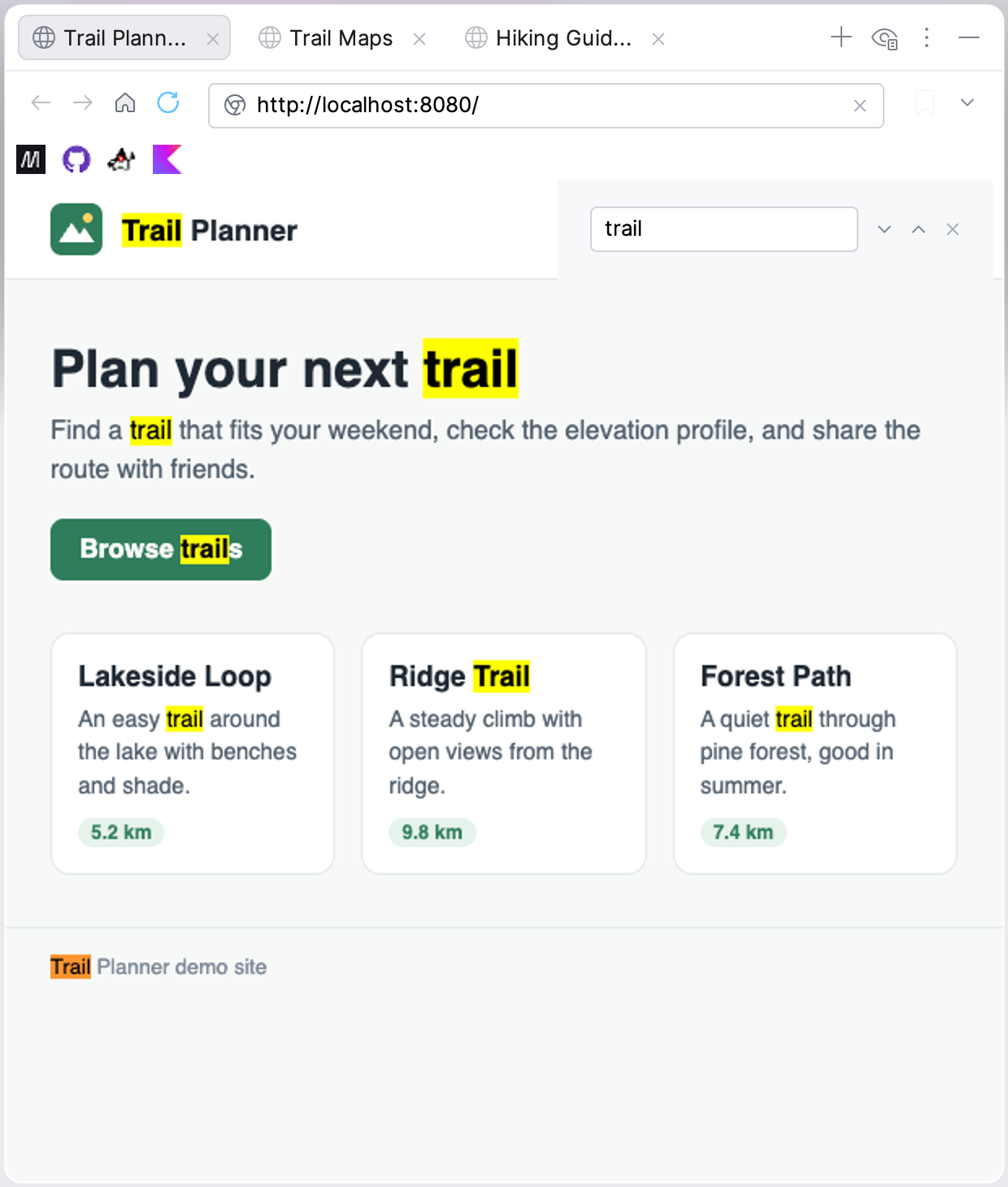
Press Enter or click Next to go to the next match. Click Previous to go back.
Press Esc or click Close to close the search box.
Zoom
Use Zoom In (Ctrl+Plus), Zoom Out (Ctrl+Minus) and Actual Size (Ctrl+0) to change the page size. Zoom applies to the current tab and is not saved.
Open the page in your default browser
Select Open in Default Browser in the More Options menu or press Ctrl+O. The page opens in the browser set in .
Use the page context menu
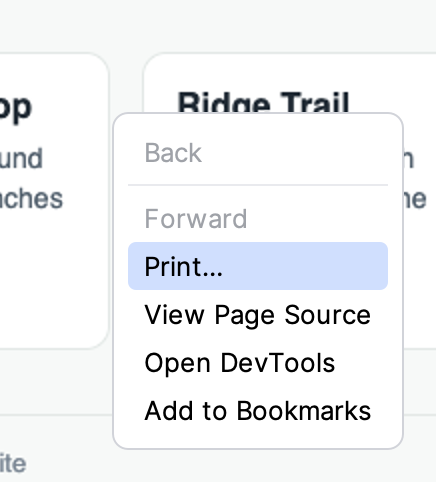
Right-click a page to open the Chromium context menu. GBrowser adds two items to it: Open DevTools and Add to Bookmarks.
More Options menu
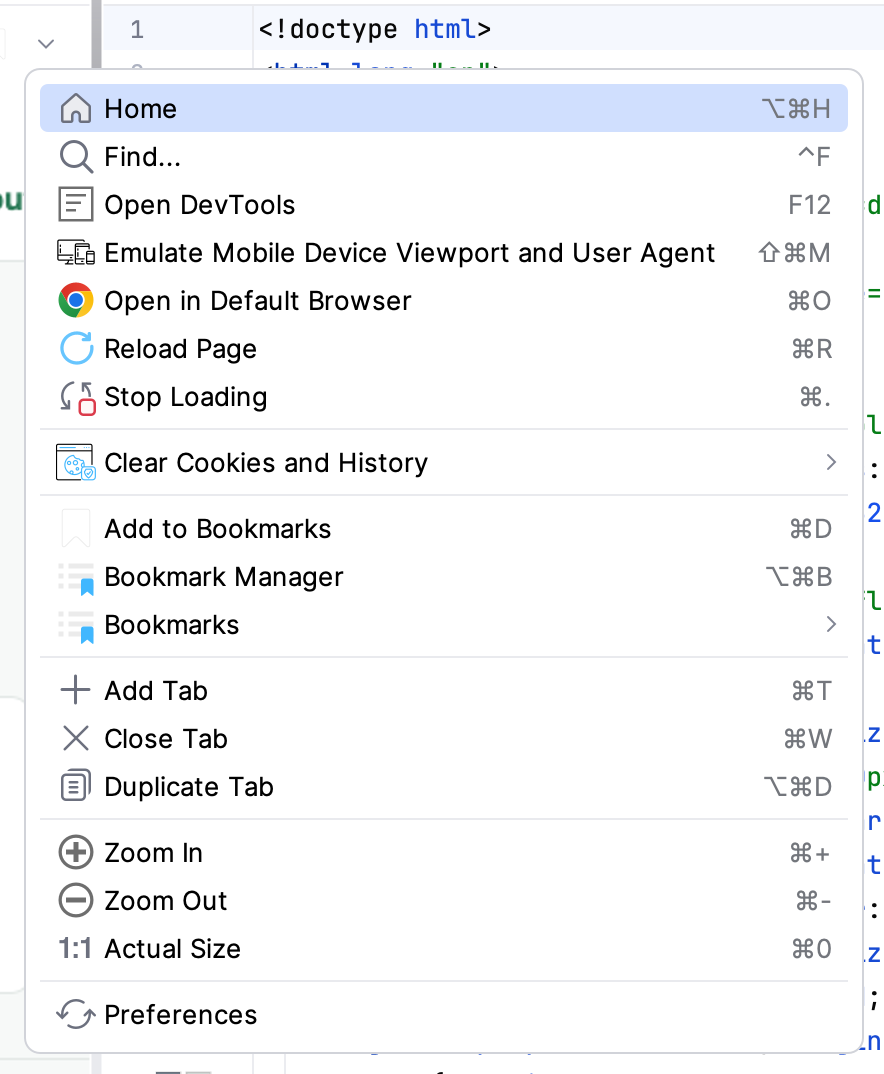
The More Options button at the right end of the browser toolbar opens a menu with every GBrowser action. The same actions are in the Options menu of the tool window title bar.
Item | What it does |
|---|---|
Home | Opens the default home page in the current tab. |
Find... | Searches for text on the page. See Find text on a page. |
Open DevTools | Opens Chromium DevTools for the page in a separate window. See GBrowser: DevTools and device emulation. |
Emulate Mobile Device Viewport and User Agent | Turns device emulation on or off for the current tab. While it is on, the item shows the device name. |
Open in Default Browser | Opens the page in the system browser. |
Reload Page, Stop Loading | Reloads the page or cancels loading. |
Clear Cookies and History | Submenu with Clear Cookies and Clear History. See GBrowser: Bookmarks and history. |
Add to Bookmarks, Bookmark Manager, Bookmarks | Bookmark the page, edit bookmarks in settings, or open a saved bookmark. |
Add Tab, Close Tab, Duplicate Tab | Manage tabs. See Work with tabs. |
Zoom In, Zoom Out, Actual Size | Change the page zoom of the current tab. |
Preferences | Opens the GBrowser settings. |