GBrowser: Settings reference
GBrowser settings apply to the current project. Each project can have its own home page, bookmarks, history and request headers.
Open the GBrowser settings
Open the settings page
Open the Settings dialog (Ctrl+Alt+S, macOS: ⌘ ,) and select .
In the GBrowser tool window, click More Options and select Preferences.
When you click Apply or OK on this page, GBrowser reloads all open GBrowser tabs in the project. Selecting a Theme option reloads them right away.
The page has these groups, from top to bottom:
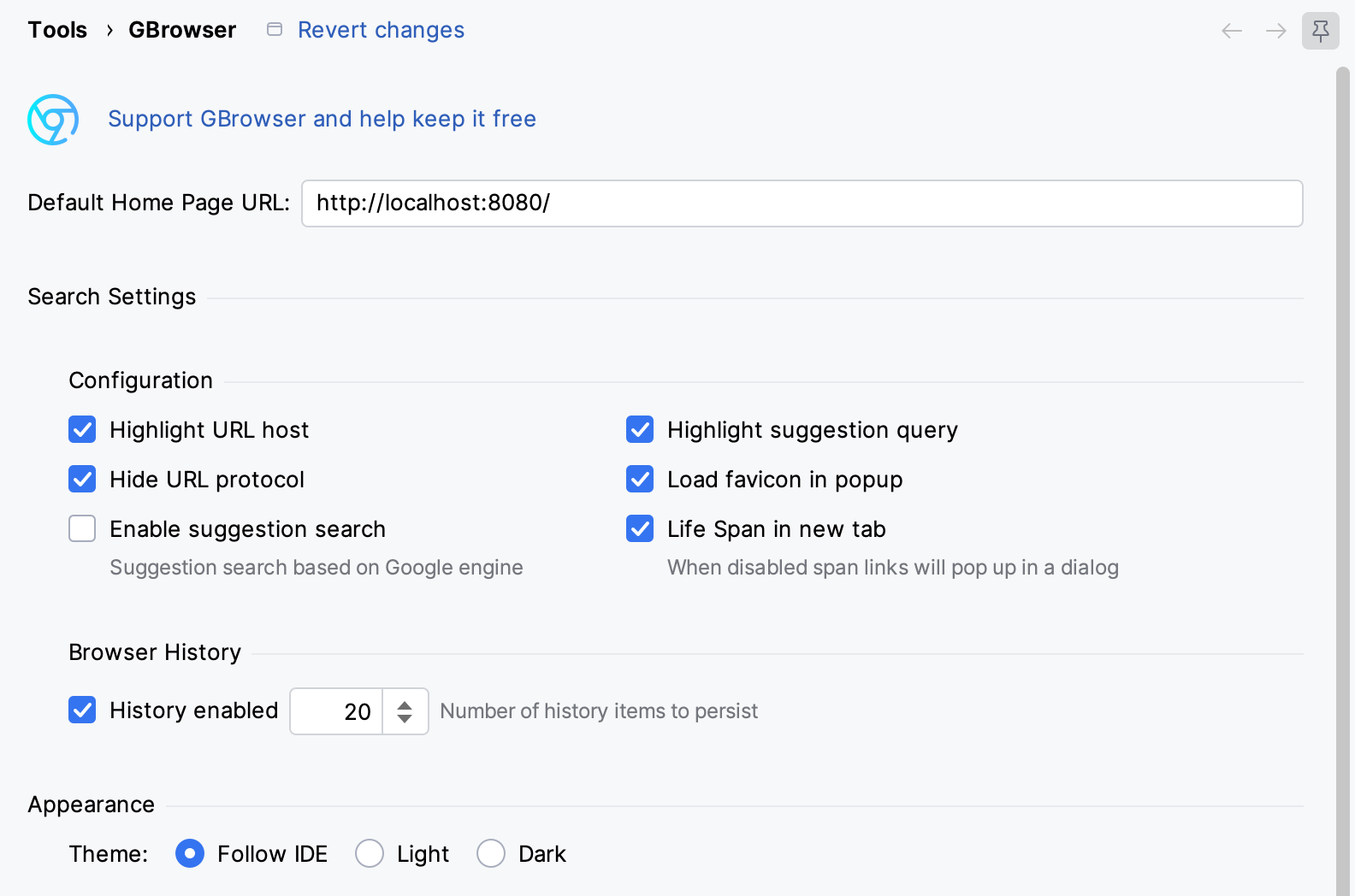
Default home page
- Default Home Page URL
The page that opens in the first tab, in every new tab, and when you click Home. The default is
https://plugins.jetbrains.com/plugin/14458-gbrowser. The field cannot be empty.
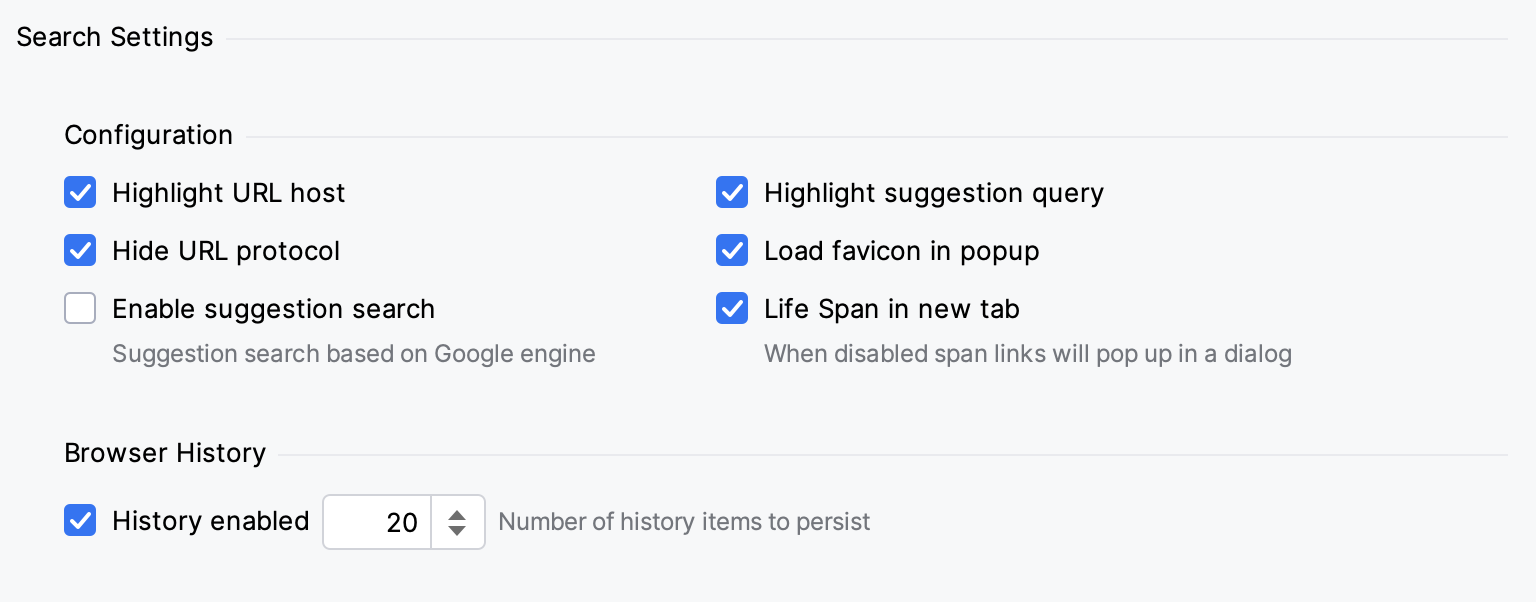
Search settings
The Configuration options control the address field and its suggestion list.
- Highlight URL host
Saved with the settings, but GBrowser 2026.3.1 does not use it: the address field shows the URL without highlighting. On by default.
- Highlight suggestion query
Highlights the text you typed in the suggestion list. On by default.
- Hide URL protocol
Saved with the settings, but GBrowser 2026.3.1 does not use it: the address field always shows the full URL, including the protocol. The suggestion list hides the protocol regardless of this option. On by default.
- Load favicon in popup
Shows site icons next to the entries in the suggestion list. On by default.
- Enable suggestion search
Adds Google search suggestions to the suggestion list, and opens a Google search when you enter text that is not a URL. When this option is on, the text you type in the address field is sent to Google. Off by default.
- Life Span in new tab
Controls where links open when a page opens them in a new window, for example links with
target="_blank". When the option is on, which is the default, such links open in a separate pop-up window. Clear it to open them in a new GBrowser tab instead. In version 2026.3.1, the comment under the option describes the reverse.
The Browser History options control the history used for suggestions.
- History enabled
Saves the pages you visit for the suggestion list. On by default.
- Number of history items to persist
The number field next to History enabled sets how many pages GBrowser keeps, from 0 to 60. The default is 20. To stop saving history, clear History enabled instead of setting the number to 0.
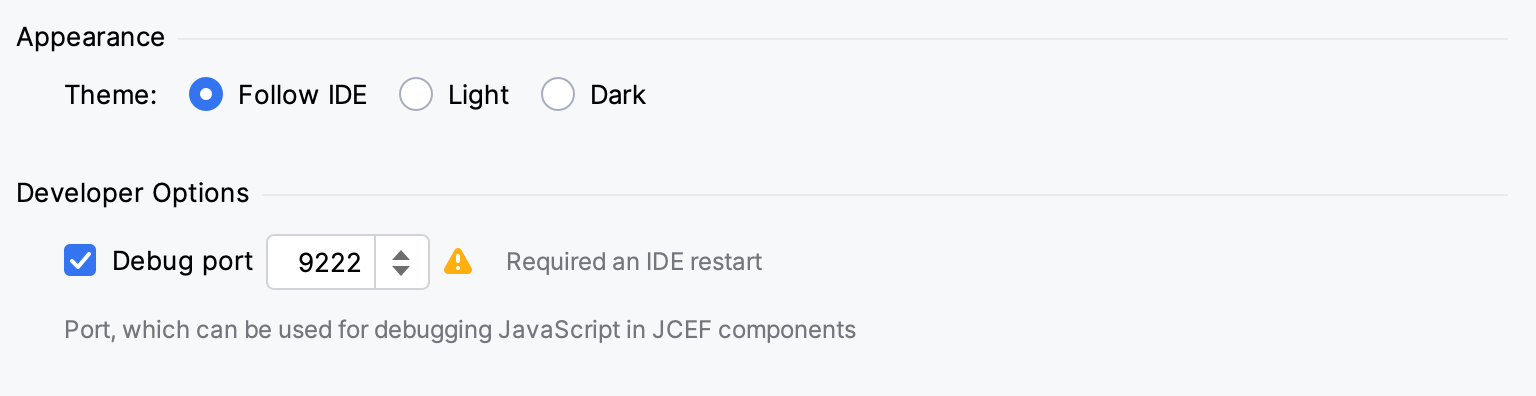
Appearance
- Theme
Sets the color scheme that GBrowser asks pages to use: Follow IDE, Light or Dark. Sites that support light and dark color schemes follow this setting. With Follow IDE, the default, open pages switch when you change the IDE theme.
Developer options
- Debug port
Select the checkbox to edit the remote debugging port of the IDE's embedded Chromium browser in the number field next to it. The checkbox is off by default, and it only unlocks the field: clearing it does not change the port. The field shows 9222 unless the IDE already uses another port. The port applies to the whole IDE, not only to GBrowser, and a change takes effect after you restart the IDE. For how to use it, see Debug from Chrome through a port.
To inspect a page from inside the IDE, you do not need a port: use Open DevTools (F12).
Tool window settings
- Hide toolwindow label
Hides the GBrowser title in the tool window header, which leaves more room for tabs. On by default.
- Show tab icon
Shows the site icon on each tab. On by default.
- Show bookmarks toolbar
Shows the bookmarks bar under the address field. On by default.
- Enable tab splitting
Lets you drag a tab to an edge of the tool window to show two tabs side by side. On by default.
- Reload previous tabs
Reopens the saved tabs when you reopen the project. GBrowser saves the first five tabs when you close the project. Off by default.
Bookmark management
The Bookmark Management group is collapsed by default. It contains a table of your bookmarks with Name and URL columns. The Bookmark Manager action (Ctrl+Alt+B) opens this page with the group expanded. For details, see Edit bookmarks.
Request headers
The HTTP Response Headers group defines headers that GBrowser adds to its requests. Despite the group name, these are request headers, for example an authorization token or a feature flag for your development server.
Add a request header
Expand HTTP Response Headers and click the add button above the Headers table.
In URI Regex, enter a regular expression that must match the whole request URL, for example
http://localhost:8080/.*. Use.*to match every URL.Enter the header Name and Value.
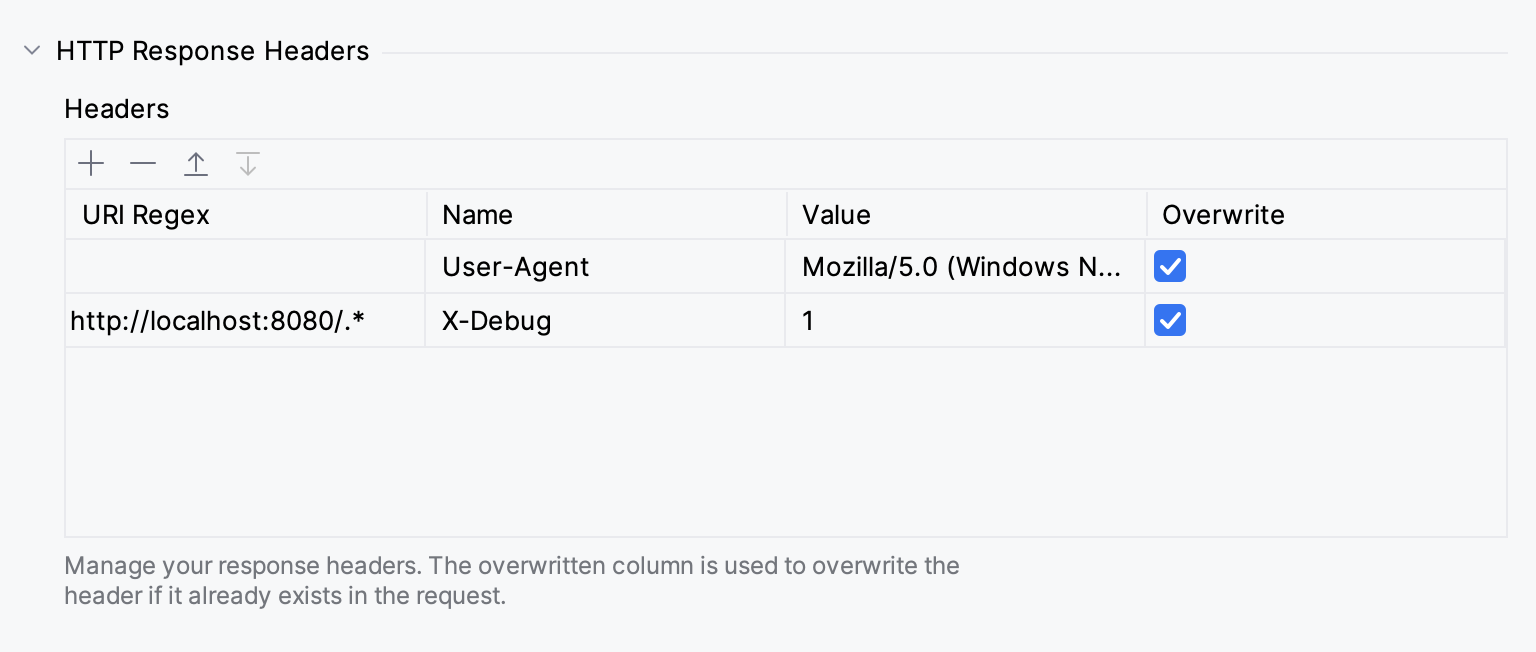
Optional: select Overwrite to replace the header when the request already has it.
Click OK.
The table starts with a User-Agent row whose URI Regex is empty, so it does not match any request.
Stop sending a header
In version 2026.3.1, the remove button does not delete a header: GBrowser keeps sending it, and the row comes back when you reopen the settings.
Expand HTTP Response Headers and clear the URI Regex cell of the header.
Optional: to also delete a stored value, such as a token, clear the Value cell.
Click OK.
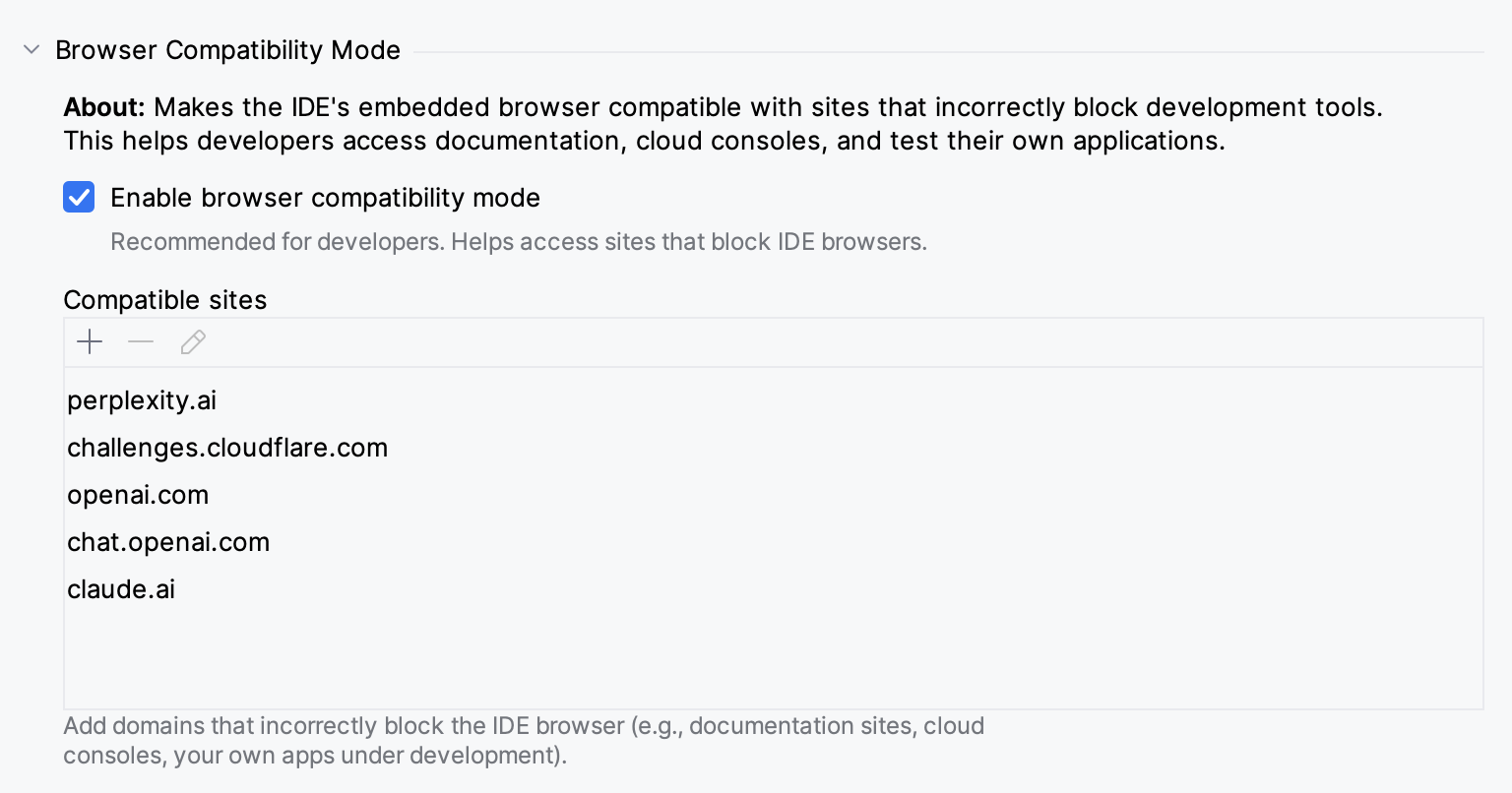
Browser compatibility mode
Some sites block browsers that are embedded in other applications or that look automated. For perplexity.ai, challenges.cloudflare.com, openai.com, chat.openai.com and claude.ai, GBrowser always sends the User-Agent of a regular desktop browser, whatever the settings below.
- Enable browser compatibility mode
When this option is on, GBrowser runs a script that hides automation markers when a new tab's browser is created on one of the domains in Compatible sites. On by default.
- Compatible sites
The domains that the compatibility script applies to. Adding a domain does not change the User-Agent that GBrowser sends to it. The defaults are
perplexity.ai,challenges.cloudflare.com,openai.com,chat.openai.comandclaude.ai. To change or remove a domain, select it and click the edit or remove button. Changes to the list are saved right away, even if you then click Cancel.
Add a site
Expand Browser Compatibility Mode and click the add button under Compatible sites.
In the Add Anti-Detection Site dialog, enter the domain, for example
example.com, and click OK.Click OK.
Open the site in a new GBrowser tab.
Where GBrowser stores its data
GBrowser stores its settings, bookmarks, history, request headers and compatible sites in .idea/gbrowsers.xml in the project directory. The tabs saved for Reload previous tabs are in .idea/gbrowser_project.xml.
If you share the .idea directory through version control, these files are shared too. Add them to your ignore file if you want to keep your bookmarks, history and headers private.