Work with Pipelines
AZD provides a dedicated Pipeline Tool Window for a centralized view of your CI/CD workflows.
View and Manage Pipelines
Monitor all your Azure DevOps Pipelines directly in the IDE.
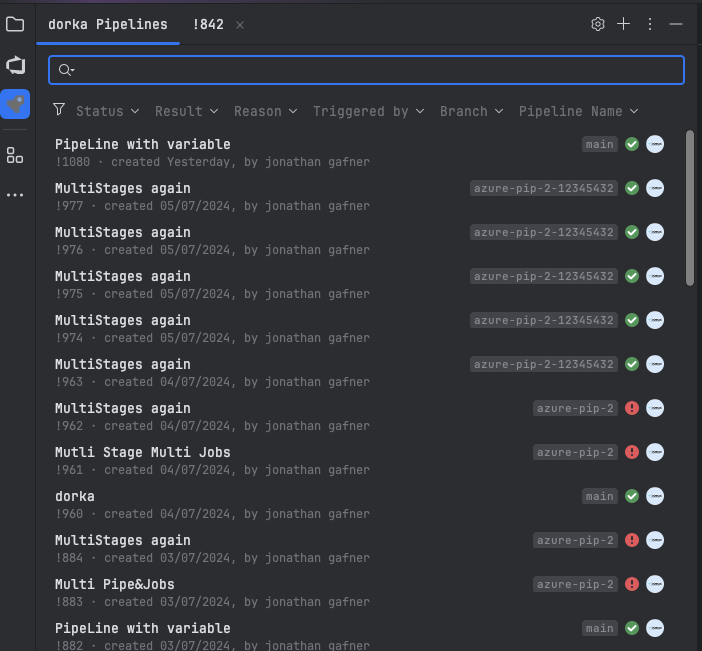
Select a pipeline from the list to view its latest runs.
Click a specific run to open the details view.
Approvals and Validations
If a pipeline run requires an approval or a manual validation, you can handle it directly in the IDE.
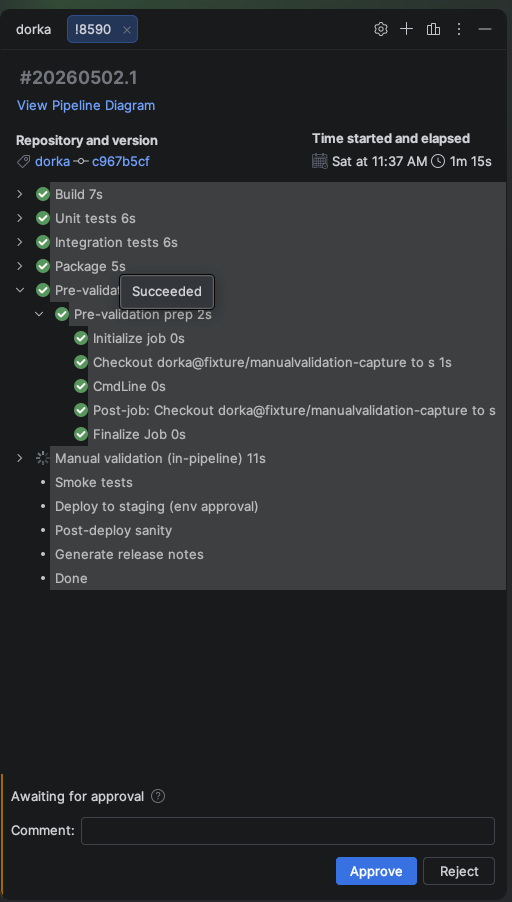
The approval panel appears at the bottom of the build header. You can review the instructions, add a comment, and approve or reject the request.
Analyze Logs with AI
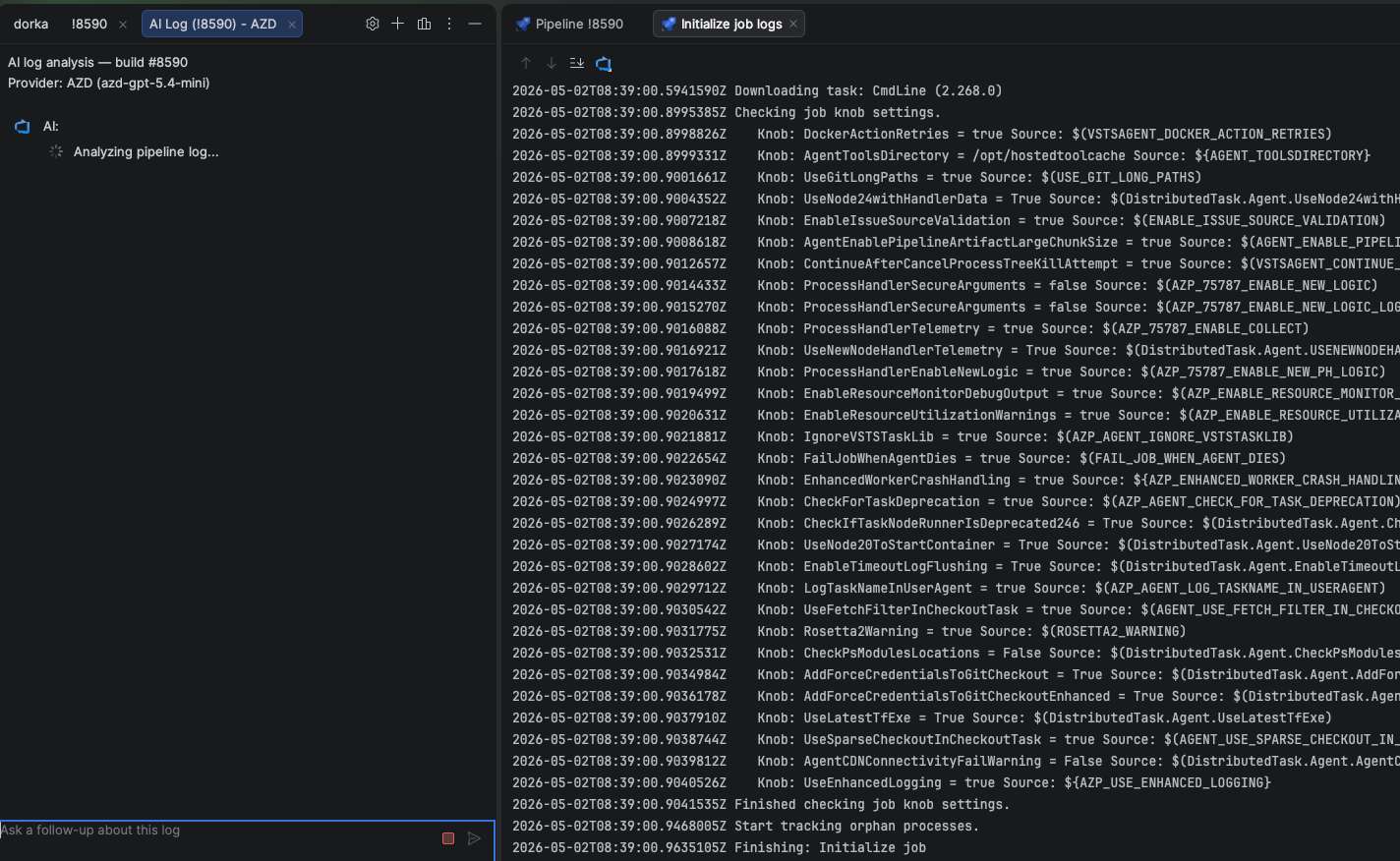
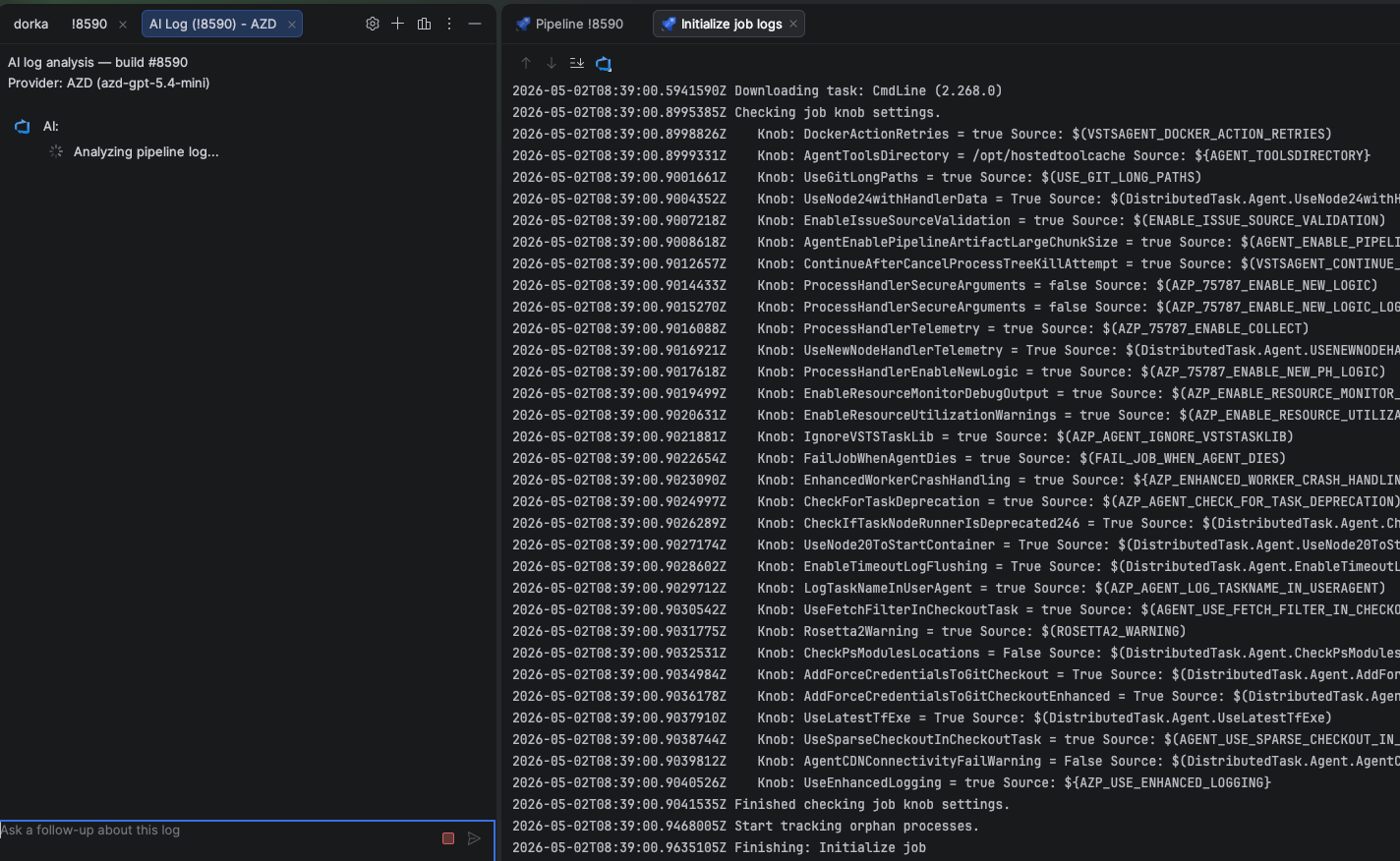
For failed pipeline runs, you can use the AI assistant to analyze the logs and identify the root cause of the failure.
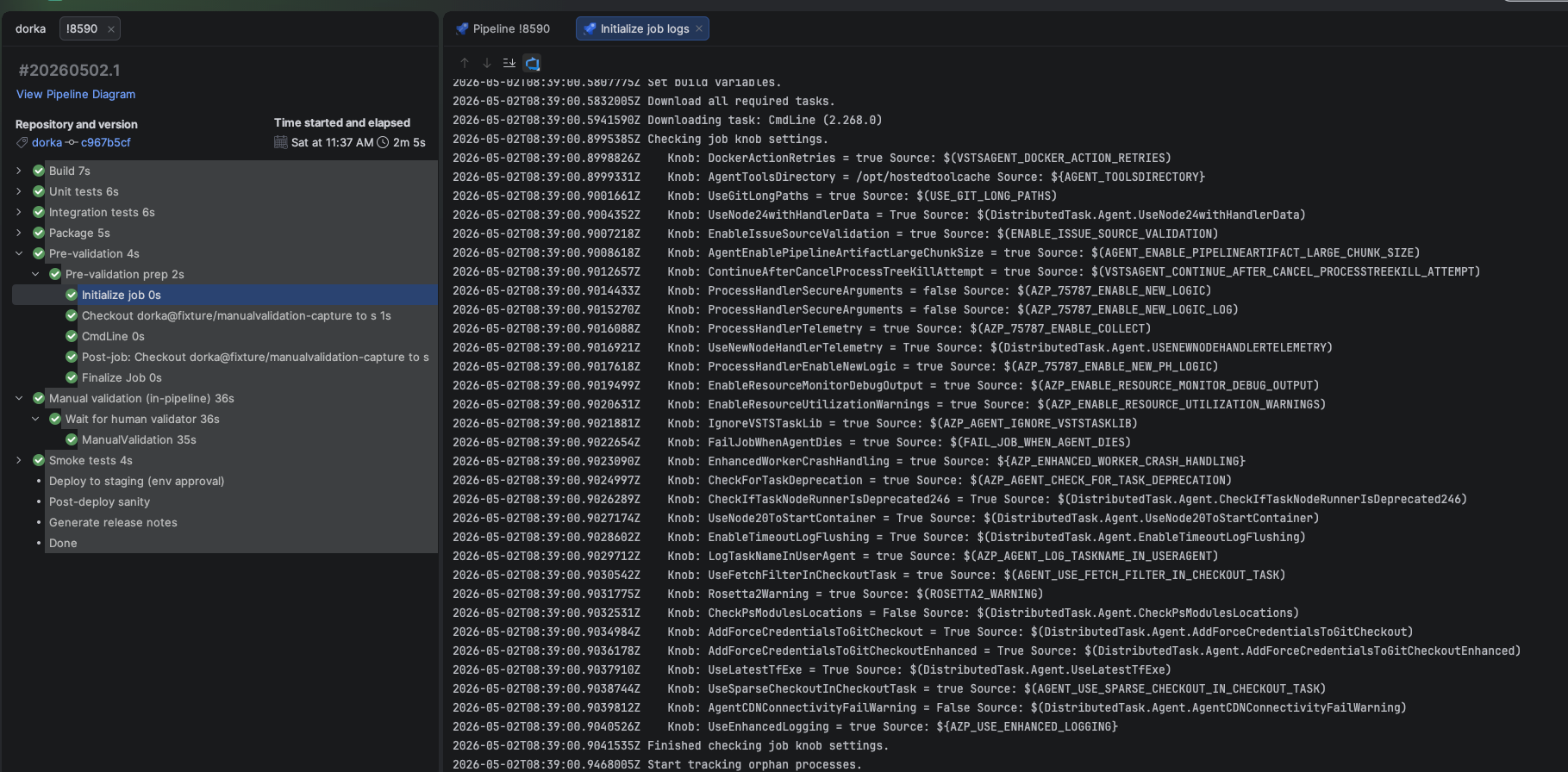
Click the AI icon in the log viewer to send the stage logs to the AI provider for analysis and chat about the results.
Pipeline Stage Diagram
Get a visual overview of your pipeline's stages and their dependencies.
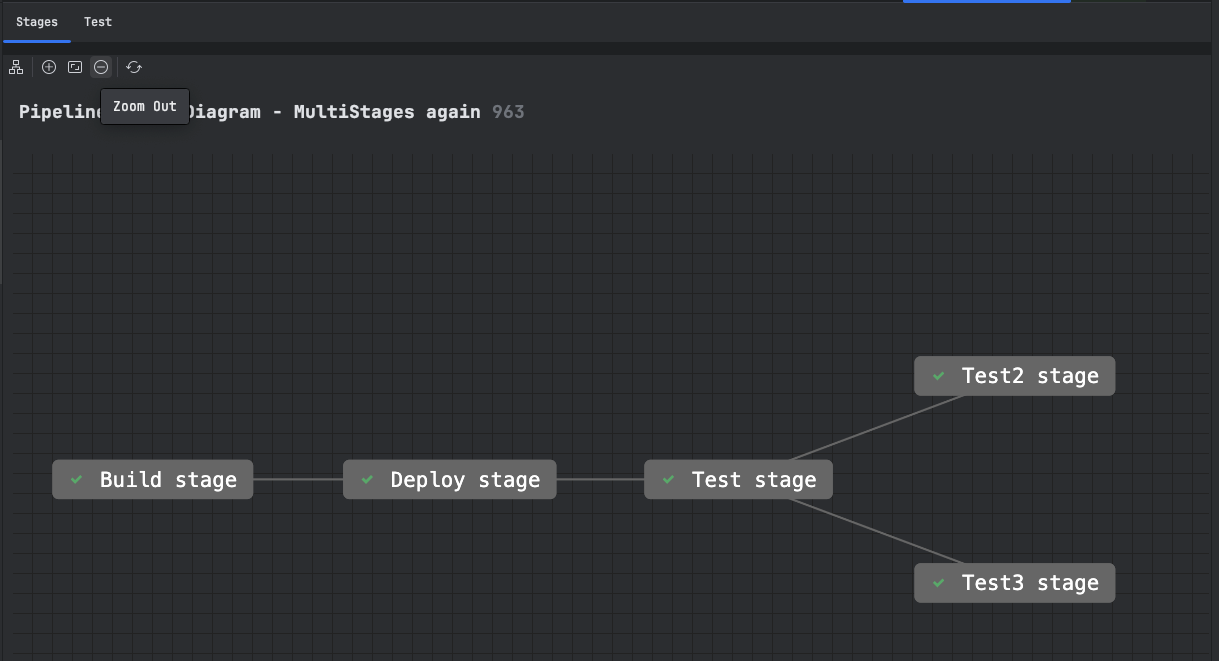
Right-click any stage in the diagram to access context actions:
Open Stage in Browser: Navigates to the stage details in Azure DevOps.
Copy Stage Link: Copies the web URL for the stage.
Test Results and Association
View pipeline test results with the updated test panel, which includes sorting, filtering, and a comprehensive test running summary.
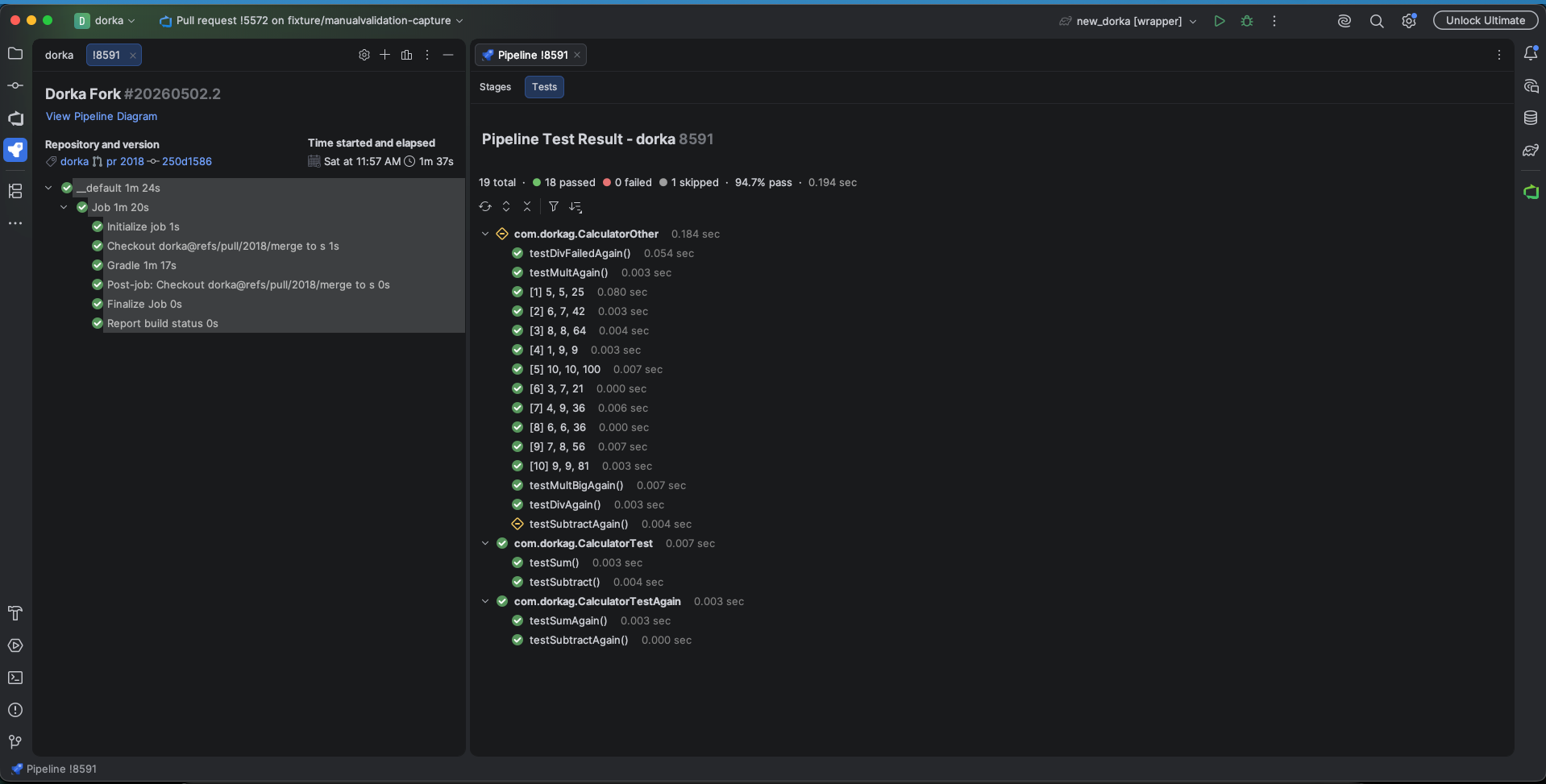
Associate automated tests with Azure DevOps test cases to maintain traceability and track execution directly in the IDE.
Trigger Pipelines
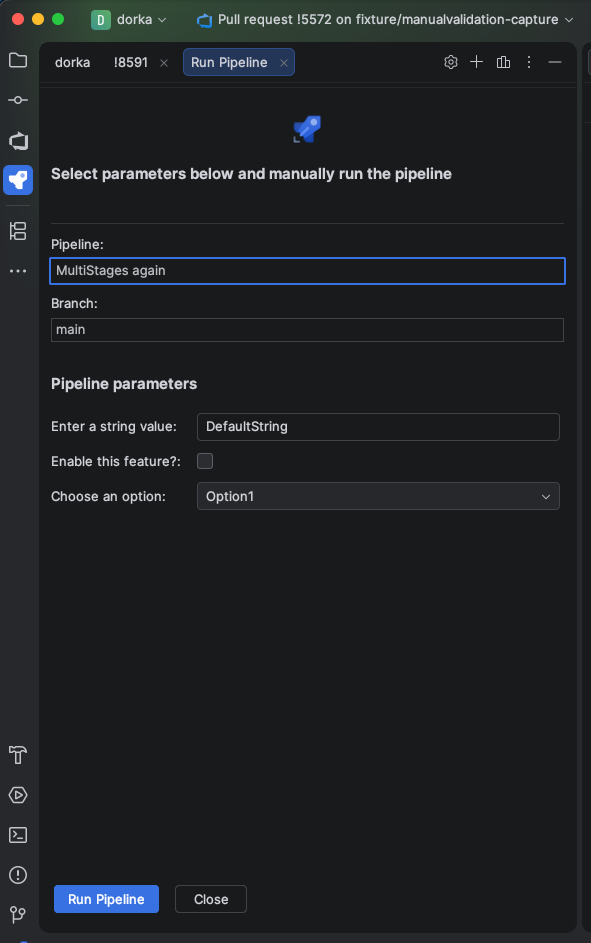
Click the button in the tool window.
Select the target branch and configure parameters or variables, just like in the Azure DevOps web interface.
YAML Schema Injection
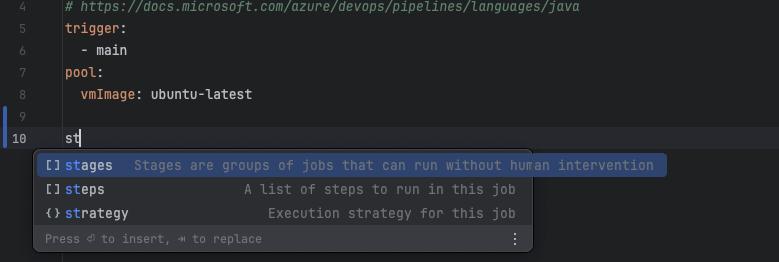
Get full code completion and validation for azure-pipelines.yml files.