Installation
Installing the AZD plugin is straightforward. This guide will walk you through the process of installing the plugin and connecting it to your Azure DevOps account.
For more information on JetBrains plugin installation, refer to the official documentation.
Install the AZD plugin
Open JetBrains IDE.
Open your JetBrains IDE and navigate to the section under the Settings dialog.
Search for Azd Plugin.
Under the tab, type and click the button.
Wait for the installation to complete and restart your IDE when prompted.
You can also install the plugin from the JetBrains Marketplace.
Open the AZD plugin webpage on the JetBrains Marketplace.
Click on the or button and follow the installation instructions.
Authentication
AZD supports two authentication methods to connect to Azure DevOps:
Microsoft Entra ID (OAuth) — Sign in with your Microsoft account using a secure OAuth flow. This is the recommended method for Azure DevOps Services (cloud).
Personal Access Token (PAT) — Generate a token from Azure DevOps and paste it into the plugin. Required for Azure DevOps Server (on-premises).
Generating a Personal Access Token for the AZD Plugin
To properly connect to your Azure DevOps account, you will need to generate a Personal Access Token (A.K.A ) with the following scopes:
vso.build_execute
vso.code_status
vso.code_write
vso.graph
vso.identity
vso.profile
vso.project
vso.test
vso.threads_full
vso.work_write
More details about each scope
REST API Scope Name | Azure DevOps Portal Scope | Description |
|---|---|---|
vso.code_write | Code (Read & write) | Allows the plugin reading and writing code, including cloning repositories and pushing changes. Needed for interacting with the source code in repositories. |
vso.code_status | Code (Status) | Allows the plugin reading and updating the build and release status associated with a commit. Needed for updating pull request statuses and build statuses. |
vso.graph | Graph (Read) | Allows the plugin reading graph data such as users, groups, and memberships. Needed for rendering identity and membership in the UI. |
vso.build_execute | Build (Read & execute) | Allows the plugin reading build definitions and queues, and queuing builds. Needed for triggering and monitoring builds. |
vso.identity | Identity (Read) | Allows the plugin reading identity information, including users and groups. Needed for retrieving user profiles and identity details. |
vso.project | Project and Team (Read, write, & manage) | Allows the plugin managing projects and teams. Needed for interacting with project-level data, settings, and policies. |
vso.threads_full | Pull Request and Threads (Read & write | Allows the plugin full access to code discussions and comments (threads) in pull requests. Needed for managing comments and discussions on code and pull requests. |
vso.profile | Profile (Read) | Allows the plugin reading your profile information. Needed for displaying user profile details within the plugin. |
vso.work_write | Work Items (Read & write) | Allows the plugin reading and writing work items. Needed for creating and updating tasks, bugs, and other work items. |
vso.test | Test Management (Read) | Allows the plugin reading test plans, suites, cases, and results. Needed for accessing test management features and data. |
PAT Accessibility
You can now restrict the to a specific organization, and the plugin will work as expected.
Due to an unresolved issue with the Microsoft Azure DevOps team, you must create the PAT with the option set to .Otherwise, the plugin will not be able to authenticate with the Azure DevOps server.
Connect to Azure DevOps
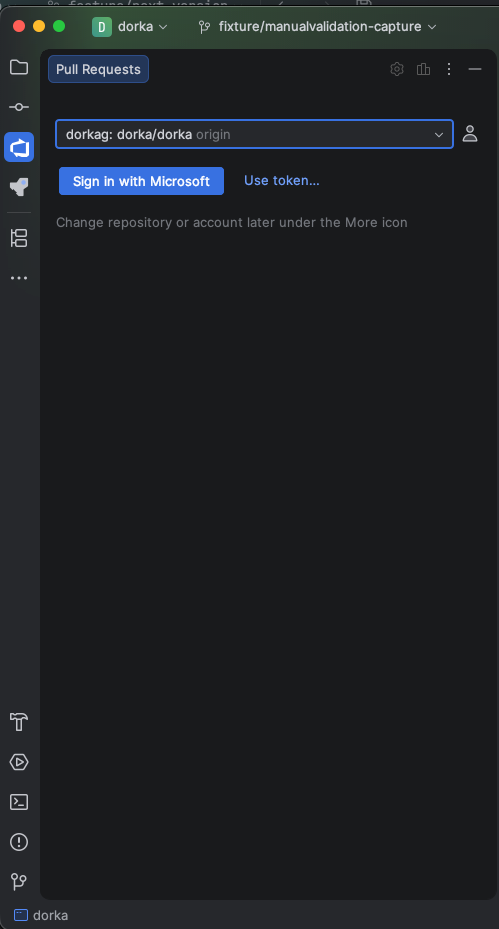
Now that the IDE is running with the plugin, you can connect to your account. You can log in either from the or from the .
Sign in with Microsoft (OAuth)
The recommended way to connect to Azure DevOps Services (cloud). Uses Microsoft Entra ID with a secure Auth Code + PKCE flow.
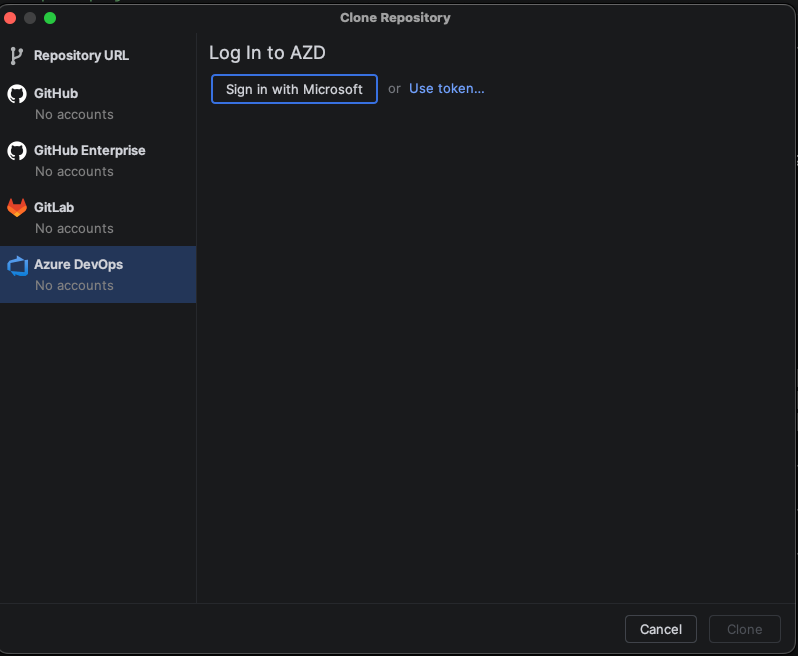
Open the AZD ToolWindow or the Clone dialog.
Click . Your browser will open the Microsoft login page.
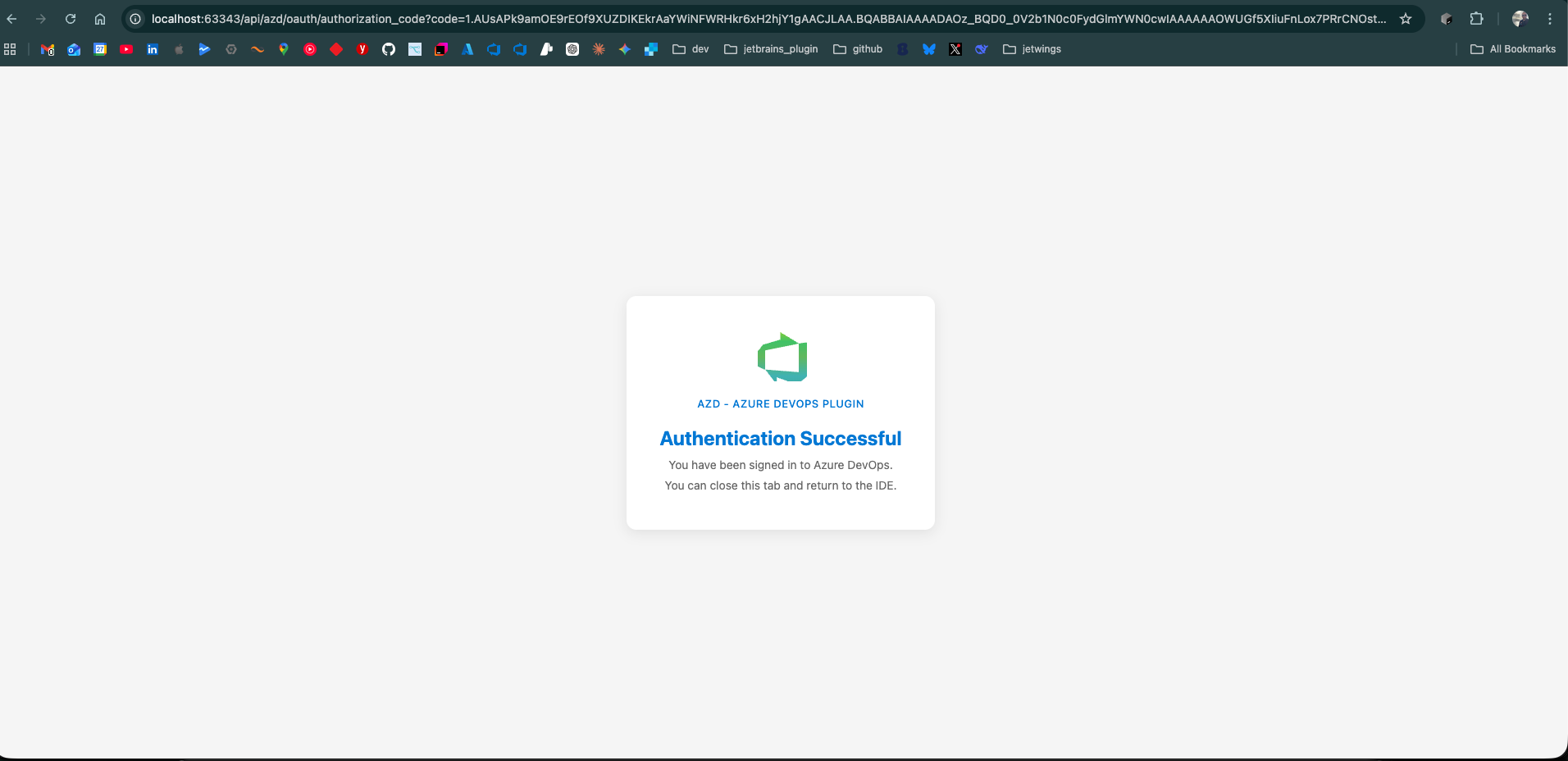
Authenticate with your Microsoft account and approve the requested permissions. The consent screen lists the specific scopes the plugin needs (code, build, identity, work items, etc.).
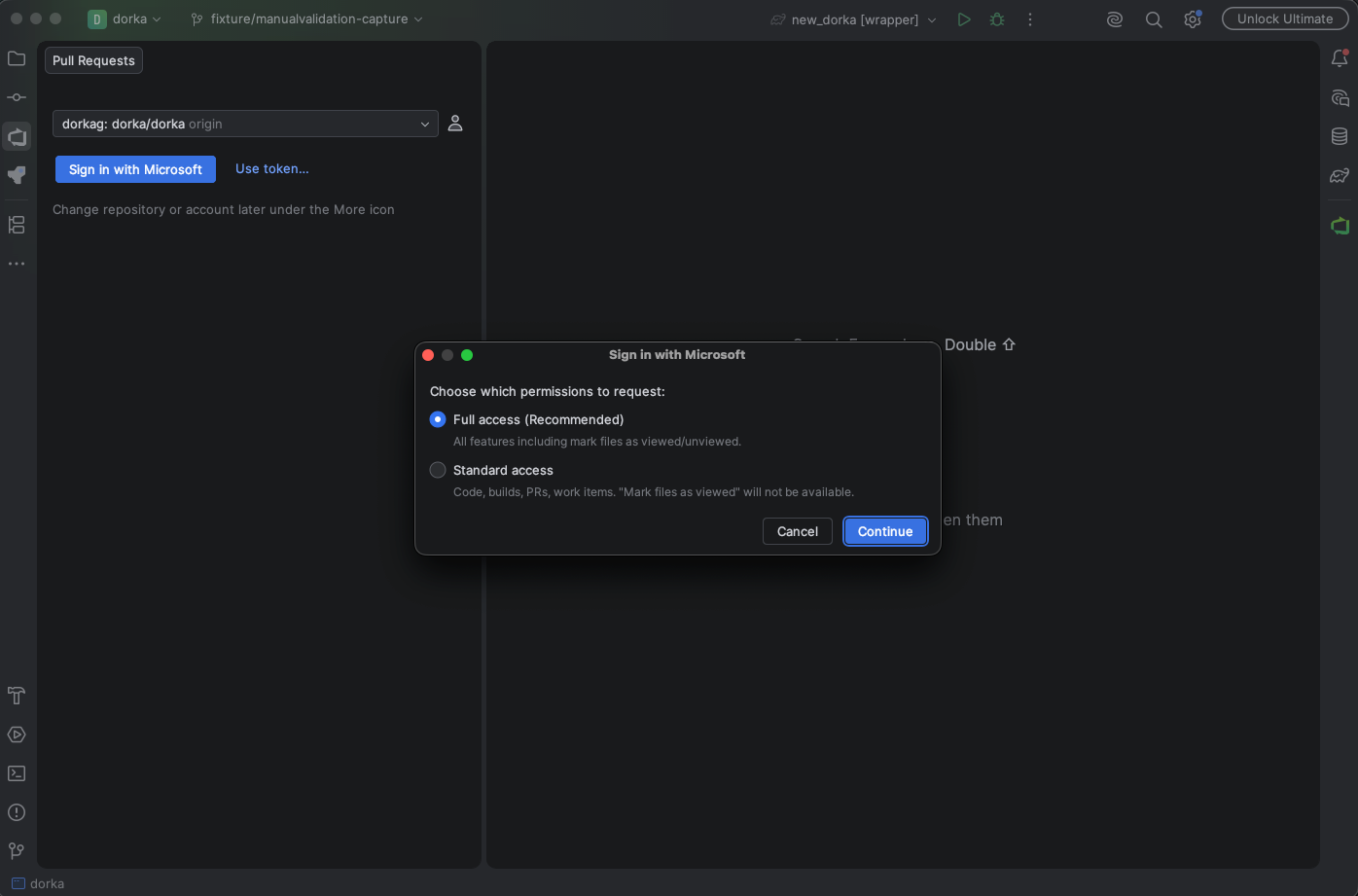
After successful authentication, the plugin automatically discovers your Azure DevOps organizations and connects.
Use a Personal Access Token
If you prefer to use a PAT, or if OAuth is not available in your environment:
Login from the Azure DevOps ToolWindow
Open the AZD ToolWindow and click (or in the Clone dialog):

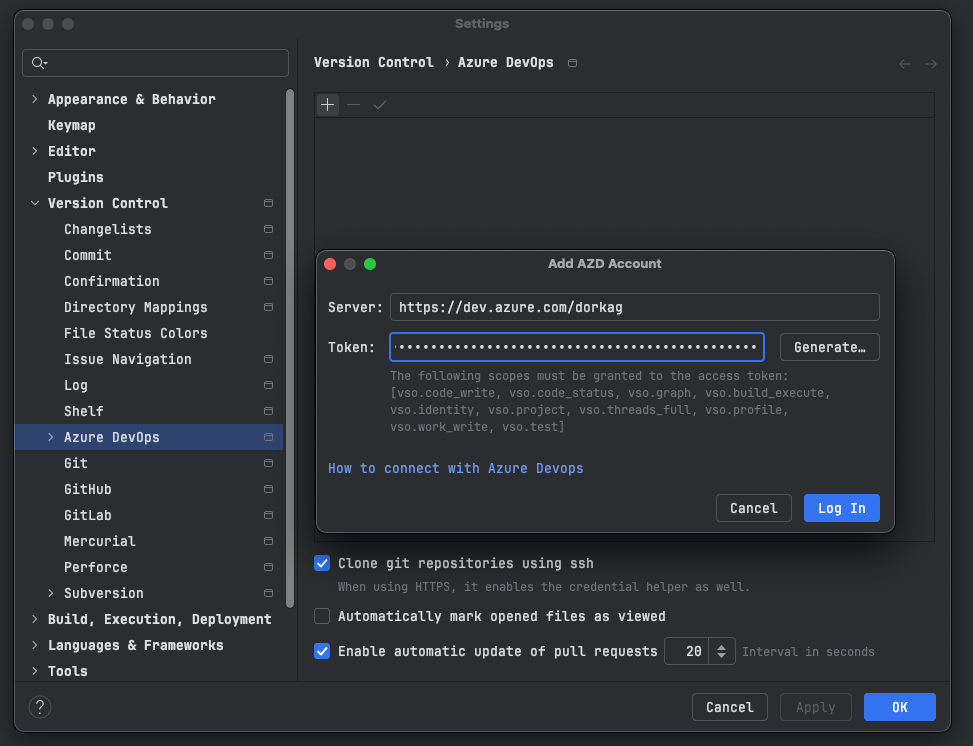
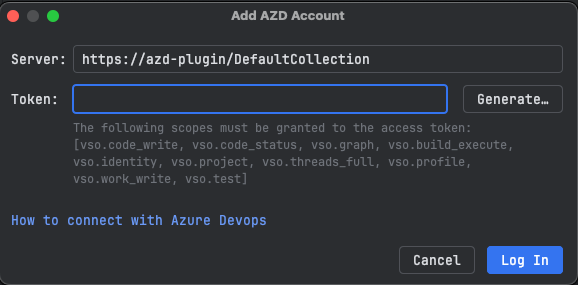
In the Add AZD Account dialog, change the Server URL if needed, and paste your personal Token.

Login from Azure DevOps Settings
Navigate to:

Click
and select from the popup to add a new Azure DevOps account.
In the dialog, set the url and add your personal token.

Azure DevOps Server (on-premises) requires a Personal Access Token for authentication.
Login from the Azure DevOps ToolWindow
Open the AZD ToolWindow:

Click on the button to add a new Azure DevOps account.
In the Add AZD Account dialog, change the Server URL if needed, and paste your personal Token.

Login from Azure DevOps Settings
Navigate to:

Click on
button to add a new Azure DevOps account.
In the panel set the url and your secret PAT.