DORKAG Help

FAQ and Troubleshooting

Resolving Token Issues with Azure DevOps Server

When working with Azure DevOps Server within an organization, it may occur that the library used for credential storage is disabled.

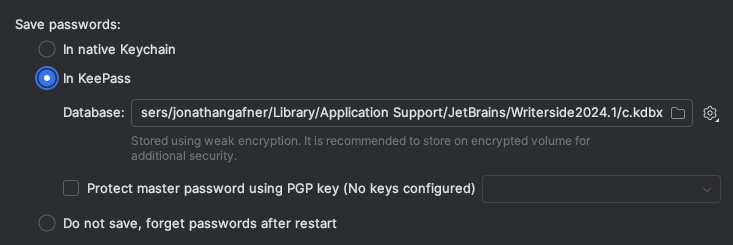
If you are experiencing difficulties related to your tokens or credentials, this is one of the first areas to check. To resolve this problem, you will need to modify your IDE's password settings. Below are the steps you can follow in IntelliJ IDEA to amend these settings:

  1. Navigate to Settings

  2. In the dialog that opens, go to Appearance/System Settings

  3. Under the System Settings, locate and click on Password

Inside the Password settings, you can manage how your credentials are stored. In case your organization does not support the native Keychain, you can try with the KeyPass.

token_password.png

What is a Personal Access Token (PAT)?

A Personal Access Token (PAT) is a secure way to authenticate Azure DevOps. It provides a way to access your Azure DevOps resources without using your username and password, which can enhance security by limiting the scope and duration of access.

How to Create a PAT in Azure DevOps?

To create a PAT in Azure DevOps, follow these steps:

  1. Navigate to your Azure DevOps organization.

  2. Click on your profile picture in the upper-right corner and select Security

  3. In the "Personal Access Tokens" section, click "New Token."

  4. Specify a name for your token, set the expiration date, and select the scopes required for your tasks.

  5. Click "Create" and copy the token for use in your applications.

Note: Keep your PAT secure and treat it like a password. Do not share it or expose it in your code.

Common Issues with Login and How to Resolve Them

If you encounter issues when trying to log in, consider the following troubleshooting steps:

  • Ensure the PAT has not expired. PATs have a limited lifespan and need to be renewed periodically.

  • Verify that the PAT has the necessary permissions for the tasks you are performing.

  • Check for any typos or errors in the PAT when entering it into your application.

  • If you clone with the IDE Version control, make sure that you checked/unchecked the ssh

  • If you are using http is highly recommended to enable the usage of Git Credential Helper by checking the User credential helper checkbox under Settings | Version Control | Git

  • If your PAT is not persisting across IDE restarts and you have Backup and Sync (Settings Sync) enabled, update to the latest plugin version. Earlier versions could have the local account storage overwritten by Settings Sync.

  • Consider using Sign in with Microsoft (OAuth) as an alternative to PAT for Azure DevOps Services — it avoids token expiration and scope management issues entirely.

Why does 'Mark file as viewed' fail with a 401 error?

The Mark file as viewed feature uses an internal Azure DevOps API (Contribution/HierarchyQuery) that requires a Full Access PAT. No combination of individual scopes works — this is a known Azure DevOps limitation.

To resolve this:

  • PAT users: Regenerate your PAT with the Full access scope enabled in Azure DevOps. Individual scopes (even all of them checked) will not work for this specific feature.

  • OAuth users: When the feature fails, the plugin displays a notification with a Grant Full Access action. Click it to re-authenticate with the required elevated permissions.

If you choose not to grant Full Access, the plugin falls back to local-only tracking — files will be marked as viewed in your IDE but the state will not sync with Azure DevOps.

Resolving Performance Issues with the Plugin

If you are experiencing performance issues with the AZD IntelliJ plugin, you can try the following steps to improve performance:

  • Ensure you are using the latest version of the plugin. Updates may include performance improvements.

  • If your team is creating large Pull Requests with many files and many comments, it is recommended to:

    • Increase the VM memory settings so the IDE can run with at least 6GB

    • Unselect the Show all files in one diff view mode

How to Open a Bug or Feature Request

If you encounter a bug or have a feature request for the AZD IntelliJ plugin, you can report it on the project's GitHub issues page. Follow these steps:

  1. Go to the GitHub issues page: https://github.com/edgafner/dorkag/issues

  2. Click on "New issue."

  3. Select "Bug report" or "Feature request" as appropriate.

  4. Fill in the required information and submit the issue.

Why Isn't the Plugin Free?

The plugin is not free because its development requires significant time and resources.

I have also tried to reach out to potential investors from Microsoft to JetBrains and other tech giants, but for now, no luck.

The goal is to keep trying to reach out to potential investors hoping this community will be big enough to make the plugin free. For now, what you can do is add a nice review on the Azd.

26 March 2026