AZD: Boards and work items
The AZD Boards tool window lists the work items of your Azure DevOps projects. It uses the same connection as the pull request and pipeline tool windows, and appears in projects with an Azure DevOps Git remote. If you are not connected yet, select the repository and account and click View Work Items.
- Find work items
Filter and sort the list in the tool window; see Find work items below.
- Open a project
Open a project's Summary, Board and List in an editor tab; see AZD: Project summary, board and list.
- Edit a work item
Change fields, plan dates and estimates, hide custom fields and delete work items; see AZD: Edit work items.
- Timeline, children and attachments
Comment, see child and related work items, linked pull requests and branches, and manage attachments; see AZD: Work item timeline, children and attachments.
- Create a work item
Create a work item or a child of one; see AZD: Create work items.
- Branches and commits
Create a branch from a work item, see the current branch's work item in the status bar, and reference work items in commits; see AZD: Branches and commits from work items.
Find work items
Filter and sort work items
Open the AZD Boards tool window: .
Click the filter icon and select a quick filter: All, Assigned to me or Recent activity (the default).
All: work items of the project that the repository belongs to.
Assigned to me: work items assigned to you in all projects of the organization or collection.
Recent activity: work items you recently viewed or changed in all projects of the organization or collection.
The list leaves out work items in the Closed, Done and Removed states. A work item from another project shows the project name as a tag.
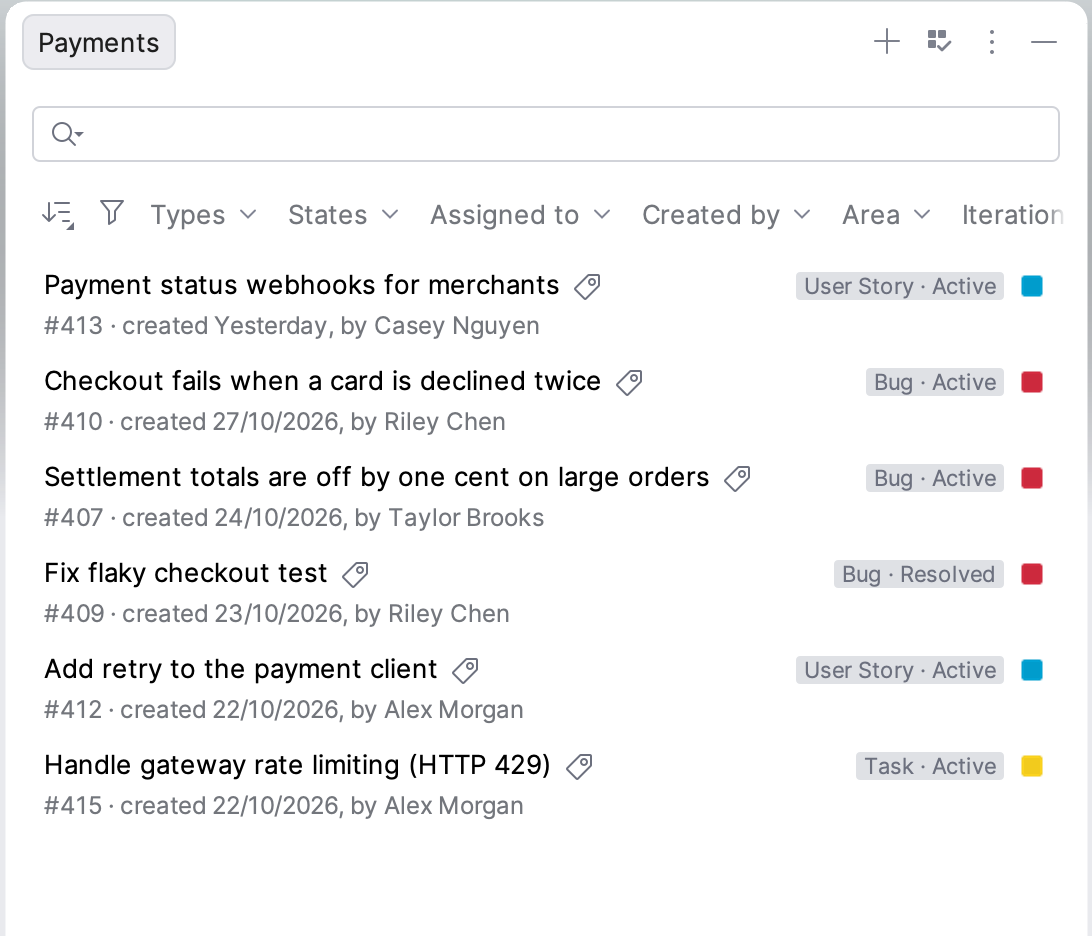
Narrow the list with the search field and the filter chips: Types, States, Created by, Area, Iteration, Assigned to and Tags. Assigned to also offers Unassigned. In each filter popup, All and Clear select or clear every value.
To change the order, click the sort icon and select Default (newest first), Changed Date, ID or Priority. Select Descending to reverse it.
Double-click a work item, or select it and press Enter, to open it. Its details open in a tab of the tool window, and its timeline opens in the editor; see AZD: Edit work items.
Right-click a work item for these actions:
- Open Work Item on Azure DevOps
Opens the work item in your browser.
- Copy Work Item URL
Copies the link to the work item.
- Create Branch…
Creates a Git branch for the work item; see Create a branch from a work item.
- Refresh
Reloads the list. The list does not refresh by itself.
- Delete Work Item…
Moves the work item to the recycle bin; see Delete a work item.